![iseekplant new logo.png]](https://knowledge.iseekplant.com.au/hs-fs/hubfs/iseekplant%20new%20logo.png?height=25&name=iseekplant%20new%20logo.png)
Step-by-step instructions:
- Login to your iseekplant account
- Desktop: Click on the downward arrow next to your name at the right top of the screen then click on the "Account and Billing" tab
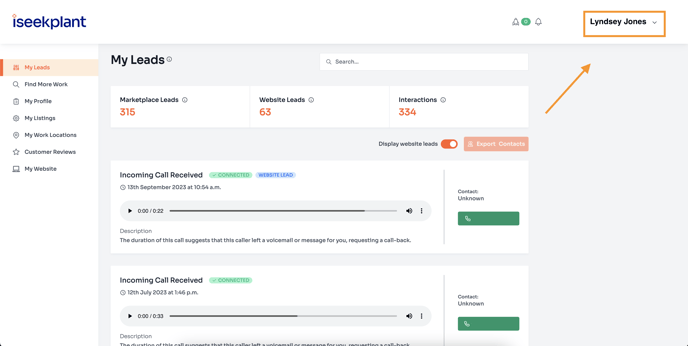
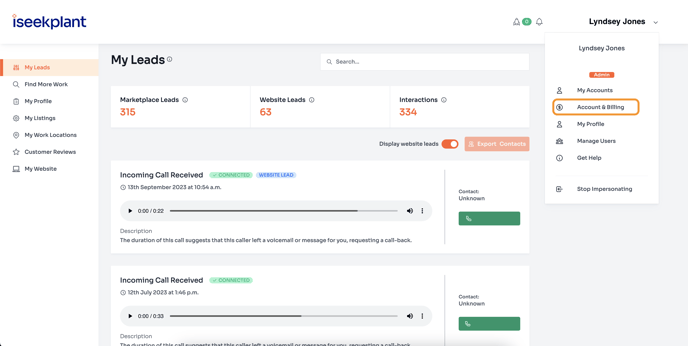
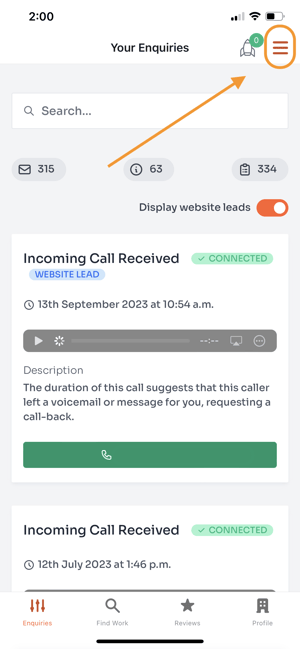
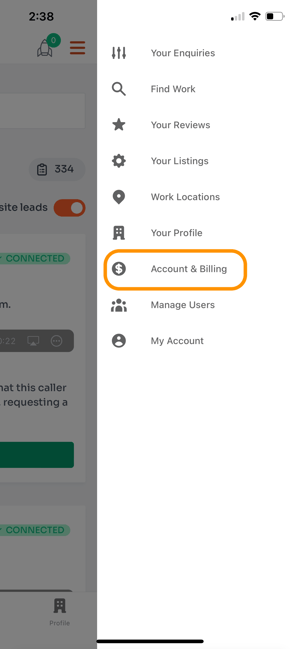
2. Mobile: Go to the 3 horizontal lines on the left of the page and scroll down to your name, then click on the downward arrow and click on the "Account & Billing" tab.
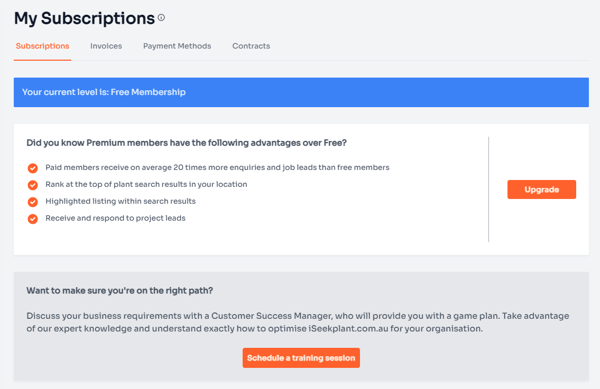
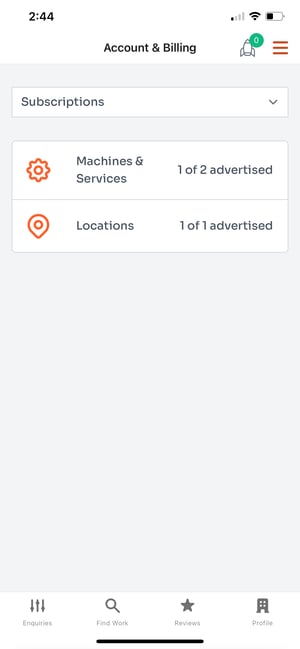
3. The first tab is the Subscriptions tab - this is where you can see your current membership level and the number of machines and locations you have.
Desktop
Mobile
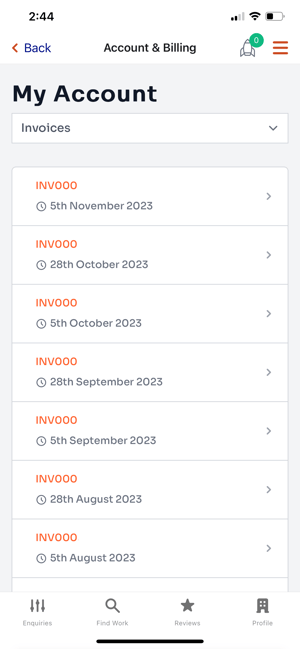
4. The next tab is Invoices - this is where you can download the invoices for the subscription you have. Click on the invoice you would like and it will download it onto a PDF.
Desktop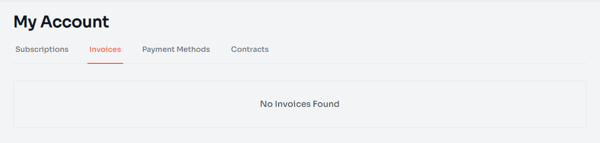
Mobile
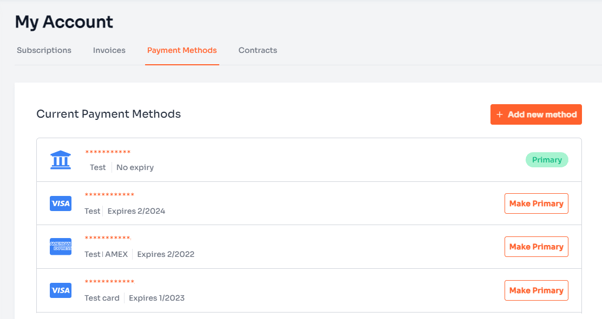
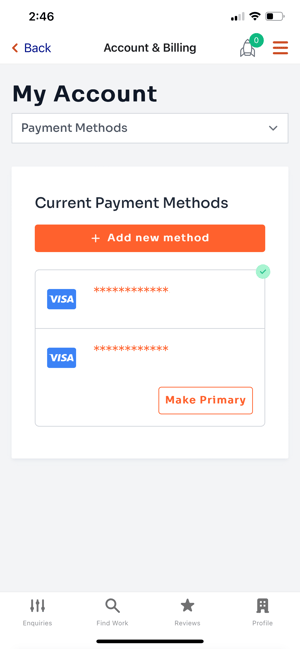
5. The third tab is the Payment Methods - this is where you can see your current payment method and details. Here you can also add a payment method by clicking on the orange “Add new method” button.
Desktop
Mobile
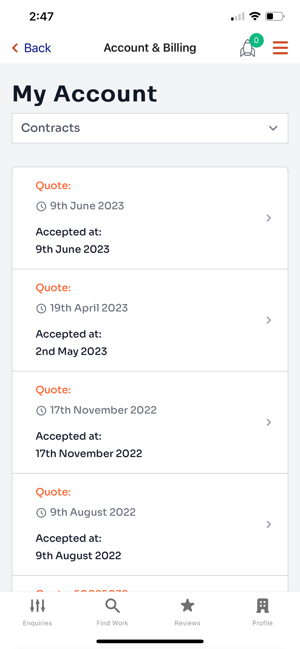
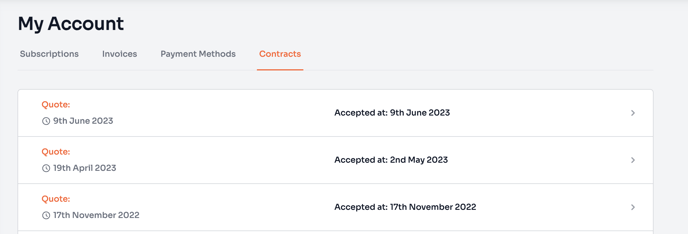
6. The fourth tab is the Contracts - this is where you can see your contracts and details.
Desktop
Mobile